Quick answer
A free subscription tracker spreadsheet template you can copy today, with practical columns, formulas, and examples to track streaming, software, and recurring bills.
Subscriptions are convenient, but they are also easy to forget because they renew quietly. A subscription tracker spreadsheet gives you one place to see what is active, what is about to renew, and what it really costs per month once you account for annual plans and odd billing cycles.
Stay Updated with Subtrakr
Sign up to our newsletter to get updates about Subtrakr and valuable insights about subscriptions and recurring expense management.
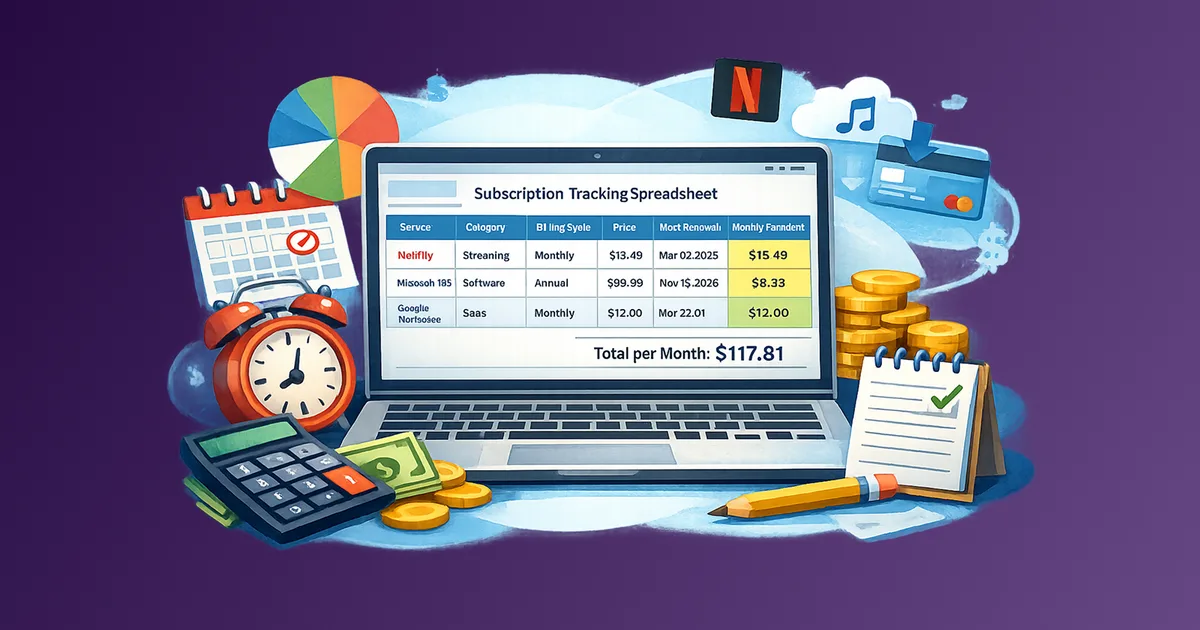
Use a subscription tracker spreadsheet to list every subscription and recurring bill with its price, billing cycle, and next renewal date. Add a calculated "monthly equivalent" column (so annual and quarterly plans show up in your monthly totals), then sort by upcoming renewals to prevent surprise charges. A simple total row lets you see your real recurring spend across streaming, software, and bills at a glance.
This template is Stage 2 in the broader system: Subscription Management in 2026: The Complete Guide walks through discovery, central tracking, renewal reminders, audits, and the habits that keep the stack intentional—so you know where the spreadsheet fits and what comes before and after it.
When you layer SaaS or vendor contracts on top of personal subscriptions, pair the spreadsheet with a dedicated renewal workflow: owners, notice windows, and action dates before auto-renew.
What should a subscription tracker spreadsheet include?
A subscription tracker spreadsheet only needs a handful of columns, but the right columns prevent two common problems: forgotten renewals and misleading totals. Start small and add fields only when they make decisions faster.
The two columns that change behavior the most are Next renewal date and Monthly equivalent. Renewal dates force you to make a keep-or-cancel decision before money leaves your account. Monthly equivalents prevent the classic "annual fees do not count right now" illusion, so your monthly total reflects reality even when bills arrive once a year.
Minimum viable columns (the MVP)
- Service / vendor name
- Decision tag (Essential, Useful, Optional, Seasonal, Business)
- Category (Streaming, SaaS, Utilities, Insurance, Fitness, Domains, etc.)
- Status (Active, Trial, Paused, Canceled)
- Billing cycle (Monthly, Annual, Quarterly, Weekly, Every 2 weeks, Every 4 weeks)
- Price per cycle (what actually hits your card)
- Next renewal date (the next charge date, or due date)
- Monthly equivalent (calculated) (converts annual and quarterly fees into a comparable monthly number)
Subtrakr's step-by-step workflow mentions the core list columns (service name, cost, billing cycle, next renewal date). The monthly equivalent is the small upgrade that makes your totals honest.
Adding a decision-tag column makes audits faster; use Subscription Categories That Actually Work: A Tagging System for Clarity and Cuts for clear tag definitions.
Optional columns that often pay for themselves
- Payment method (card, bank, PayPal) so you can update charges when a card changes
- Owner (you, partner, team member) so shared subscriptions are not double-counted. Teams that need more than one name per tool can expand this into a spend ownership matrix.
- Plan / tier or seats (especially for software)
- Auto-renew? and a cancel-by date
- Notes (discount ends, bundle details, cancellation URL)
Template libraries for tracking subscriptions often include fields like amount, duration, expiration date, renewal method, renewal date, and notes, which map neatly to next renewal and how to renew or cancel in a personal sheet.
How do I find all my subscriptions before I build the spreadsheet?
To build an accurate subscription list template, pull from real payment history instead of memory. Most people remember the big services and miss the small ones or annual renewals. Aim for completeness first, then refine categories, owners, and notes over time.
Use this quick discovery pass:
- Bank and card statements: scan the last 2 to 3 months for repeating merchants, and scan the last 12 months for annual charges (domains, insurance, memberships). Subtrakr's guide explicitly recommends checking statements to surface overlooked recurring charges.
- Email search: search for "receipt", "invoice", "renewal", and "subscription".
- App stores and marketplaces: check Apple, Google Play, Microsoft, and any marketplaces you use for work tools.
- Bills that act like subscriptions: internet, phone, utilities, insurance, hosting, and storage. Subtrakr frames this as recurring expenses, not just subscriptions, because the same quiet renewals pattern shows up in bills too.
If you keep finding "I forgot about this" charges, you are not alone. Subtrakr's subscription overload piece describes how people can underestimate subscription spend and lose track of active subscriptions, which is exactly what a tracker fixes. If you want the motivation and context behind that pattern, read The True Cost of Subscription Overload - and How to Break Free.
Step-by-step setup (time required: 18 minutes)
This setup is designed to feel simple, not like building a budgeting system from scratch. You can refine it later, but you will get value immediately.
Create the sheet (2 minutes)
Open Google Sheets or Excel and name it "Subscription tracker spreadsheet".
Paste the template headers (2 minutes)
Copy the headers from the Copy-Ready Template section into row 1. Freeze row 1.
Add dropdowns (4 minutes)
Create dropdowns for Status and Billing cycle so entries stay consistent.
Enter your first 10 items (7 minutes)
Start with the biggest and most frequent charges: internet, phone, core streaming, core work tools, insurance.
Add the monthly equivalent formula (2 minutes)
Put the formula in the first row of the Monthly equivalent column and fill down.
Add a total monthly recurring spend cell (1 minute)
Sum monthly equivalents for Active items only.
For the broader recurring expense workflow (inventory, centralize, reminders, audits), use this guide as your hub: How to Stay on Top of Your Subscriptions (Step-by-Step Guide).
What is a copy-ready subscription tracker spreadsheet template I can paste into Sheets or Excel?
Use the template below as your baseline subscription tracker template. It is deliberately plain, because simple templates get maintained.
Copy-Ready Template
Service Category Owner Status Billing cycle Price per cycle Currency Start date Next renewal Auto-renew? Monthly equivalent Annual equivalent Notes
Example rows (streaming, SaaS, bills)
| Service | Category | Billing cycle | Price per cycle | Next renewal | Monthly equivalent | Notes |
|---|---|---|---|---|---|---|
| Netflix | Streaming | Monthly | 15.49 | 2026-03-02 | 15.49 | Re-check value quarterly |
| Spotify | Music | Monthly | 10.99 | 2026-03-10 | 10.99 | Family plan, shared |
| Microsoft 365 | Software | Annual | 99.99 | 2026-11-15 | 8.33 | Annual charges are easy to miss |
| Google Workspace | SaaS | Monthly | 12.00 | 2026-03-01 | 12.00 | Work account |
| Internet provider | Utilities | Monthly | 55.00 | 2026-03-05 | 55.00 | Try negotiating yearly |
| Renter's insurance | Insurance | Annual | 180.00 | 2026-08-20 | 15.00 | Review coverage yearly |
If you pay in multiple currencies, keep Currency explicit and convert to one reporting currency before summing, or totals will be misleading. Subtrakr supports multi-currency tracking if you want a cleaner overview without manual conversions.
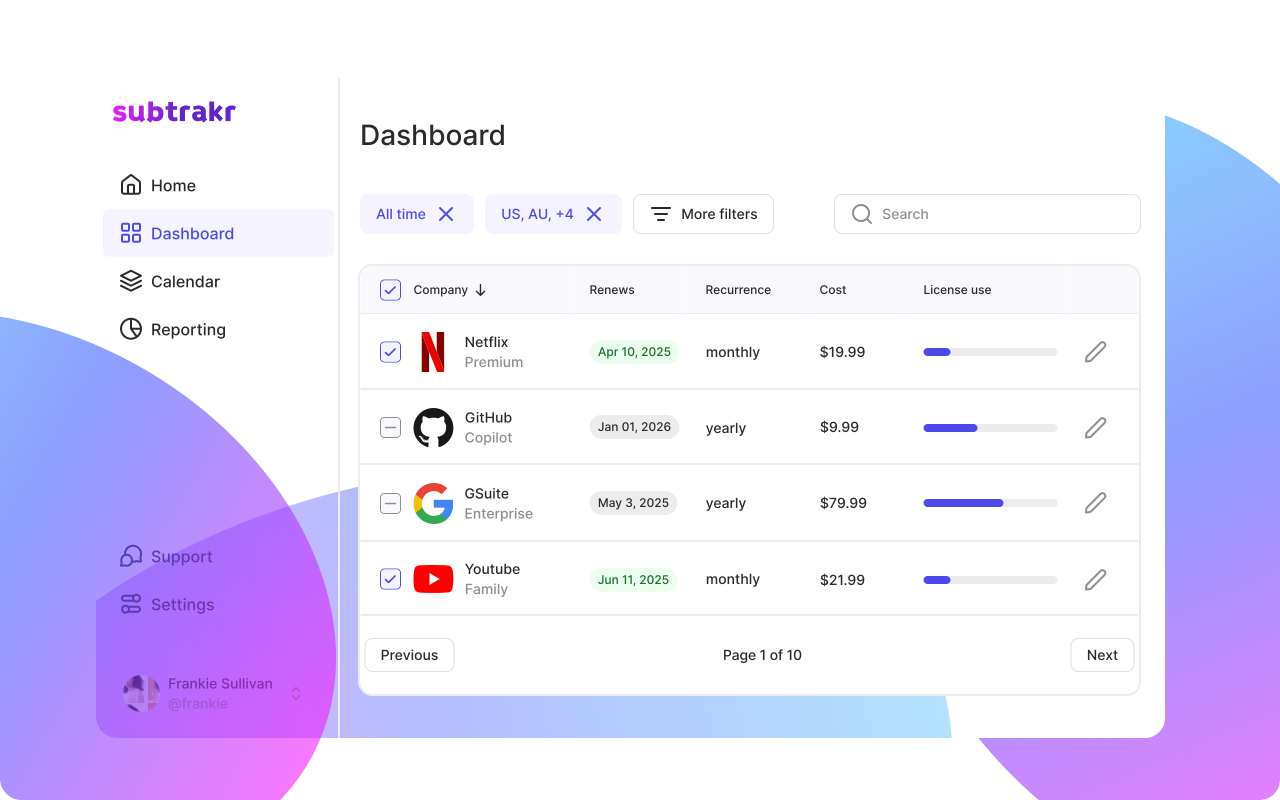
When your sheet starts to feel like a mini database, consider moving the workflow into a dedicated tool. Subtrakr is built around centralized tracking, tagging, smart renewal reminders, and a calendar view of upcoming payments and price changes.
How do I calculate monthly totals, handle annual fees, and sort by next renewal date?
The goal is two views in one sheet: true cost (monthly equivalents) and what's next (renewal sorting). Once you have those, your recurring expense spreadsheet becomes decision-ready.
Monthly equivalent and totals
Monthly equivalent formula (Google Sheets, using IFS). Assume Billing cycle is column E and Price per cycle is column F:
=IFS(
E2="Monthly",F2,
E2="Annual",F2/12,
E2="Quarterly",F2/3,
E2="Weekly",F2*52/12,
E2="Every 2 weeks",F2*26/12,
E2="Every 4 weeks",F2*13/12
)
Monthly total (Active only). If Status is column D and Monthly equivalent is column K:
=SUMIF(D:D,"Active",K:K)
SUMIF is the standard function for "sum values that match a criterion" in both Google Sheets and Excel.
Want a category breakdown (so you can see Streaming vs Software vs Bills without guessing)? Add a small summary table and use SUMIFS to total Monthly equivalents by both Status and Category.
Example (Active streaming spend, where Category is column B):
=SUMIFS(K:K, D:D, "Active", B:B, "Streaming")
SUMIFS is available in both Google Sheets and Excel for summing with multiple criteria.
Annual equivalent (optional):
=K2*12
Handling annual fees without getting tricked
Annual plans often look cheaper, but they only save money if you truly keep the service long enough. Subtrakr's billing guide notes annual billing tends to discount the yearly price, but it also requires an upfront commitment and can waste money if you stop using the service early. For decision help, see Monthly vs Annual Billing: Which Saves You More?.
In your spreadsheet, track annual items two ways:
- Monthly equivalent for honest monthly totals
- Next renewal date so the lump-sum month is predictable
Sorting by next renewal date
Manual (fastest):
Turn on a filter and sort by Next renewal date (ascending). Google Sheets supports creating filters and sorting from the Data menu.
Automatic Next renewals view (best for shared sheets):
Create a second tab and auto-generate a sorted list using FILTER + SORT, which are designed to filter ranges and sort results in Google Sheets.
Example pattern (adjust ranges and the renewal column index to match your sheet):
=SORT(
  FILTER(Subscriptions!A2:M, Subscriptions!D2:D<>"Canceled"),
  9, TRUE
)
What common spreadsheet mistakes hide real recurring spend?
These mistakes make a subscription tracker spreadsheet look organized while still undercounting or going stale. Fix them once and your sheet becomes a reliable snapshot of recurring spend.
- Only tracking monthly charges: annual renewals disappear until the month they hit. Fix it with a billing cycle field and a monthly equivalent.
- No renewal dates: without them, you cannot act before a charge.
- Not updating prices: subscriptions can quietly change value or add fees over time. Regular reviews prevent drift.
- Mixing currencies with no conversion: totals become meaningless.
- Leaving canceled items in totals: use Status and sum only Active.
- Ignoring bills: internet, insurance, and utilities renew too, and can often be negotiated.
FAQ
Is a subscription tracker spreadsheet better than a subscription tracker app?
A spreadsheet is great for customization, but apps reduce upkeep with reminders and structured views. Subtrakr focuses on dashboards, tags, and renewal reminders with a calendar view.
How do I track annual subscriptions in a recurring expense spreadsheet?
Record the annual price and renewal date, then calculate a monthly equivalent by dividing the annual amount by 12.
What columns should a subscription list template include?
Service name, status, billing cycle, price, and next renewal date are the essentials.
How often should I update my subscription tracker spreadsheet?
A quick monthly refresh and a quarterly audit is usually enough to catch price changes, unused services, and annual renewals. Keep decisions visible between reviews by logging outcomes in your tracker.
What is subscription overload and why does tracking help?
Subscription overload is the buildup of recurring charges that become hard to monitor, leading to waste. A tracker restores visibility so you can cancel, downgrade, or consolidate intentionally.
Next action
Build the list from statements, paste the template, and sort by next renewal dates once this week. If you do nothing else, you will still reduce surprise charges.