Quick answer
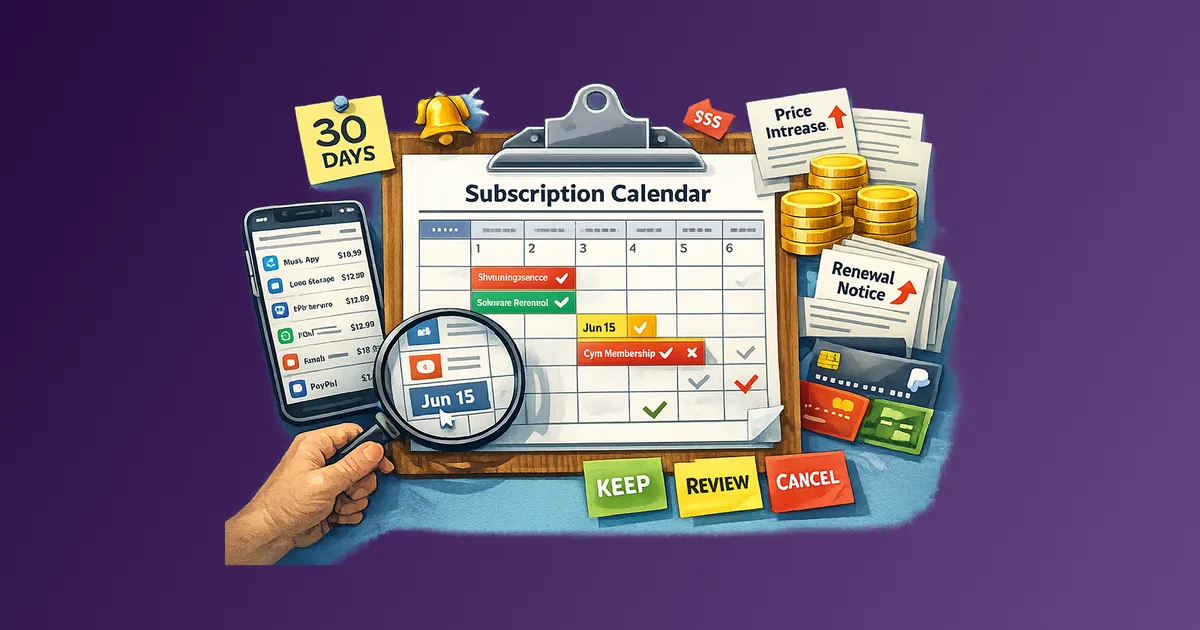
Set up a subscription calendar that tracks renewals, annual fees, and price changes so you can decide before charges hit and avoid surprise billing.
Most people do not miss subscriptions when they are useful. They miss them when they are charging. A streaming service you cancelled three months ago, an annual software plan you forgot to review, a gym membership that quietly increased its price in January. The charge arrives and the decision window has already closed.
Stay Updated with Subtrakr
Sign up to our newsletter to get updates about Subtrakr and valuable insights about subscriptions and recurring expense management.
A subscription calendar fixes this. It shifts the decision point from after the charge to before it.
What Is a Subscription Calendar?
A subscription calendar is a structured reminder system that maps every recurring expense to its next renewal date. It covers monthly, annual, and irregular billing cycles. Its purpose is simple: ensure you never get charged for something you have not actively decided to keep.
What Should a Subscription Calendar Include?
A useful subscription calendar is not just a list of apps with renewal dates. It needs enough context to support a real decision.
Each entry should include:
- Service name
- Billing amount
- Billing frequency (monthly, annual, quarterly, irregular)
- Next renewal date
- Payment method (card, PayPal, Apple, Google Play)
- Current price vs. original signup price
- Keep / review / cancel status
The "keep / review / cancel" column is what makes it actionable. Without it, the calendar becomes an observation tool rather than a control mechanism.
This guide is built for household and everyday subscriptions. If you manage business SaaS with contractual notice periods, renewal dates separate from billing, and renegotiation lead time, a structured renewal register gives you vendor leverage, not only charge reminders.
If you are still in the process of finding everything you pay for, How to Find All Your Subscriptions: Bank, Card, PayPal, Apple App Store, and Google Play is the logical starting point before building the calendar.
How to Add Monthly, Annual, and Irregular Renewals
Monthly Subscriptions
Monthly subscriptions are easiest to track because the renewal date is predictable and the cycle is short. Add each one with its billing date (for example, "Netflix, 14th of each month") and set a recurring reminder four to five days before that date.
The decision window on monthly subscriptions is short. If you want to cancel before the next cycle, you typically need to act within one to three days of the renewal. Build that into your reminder timing.
Annual Subscriptions
Annual subscriptions are the most frequently missed. They are often set up at a promotional price, renewed at full price, and forgotten entirely between cycles.
When you add an annual subscription to your calendar, record:
- The signup price or last-year price
- The current listed price (check the service's pricing page when you add it)
- The exact renewal date
- Whether there is a cancellation window before auto-renewal
Set your first reminder 30 days out for annual subscriptions. This gives you time to evaluate whether the service is still worth the full-year cost and to request cancellation if it has a 14- or 30-day notice requirement.
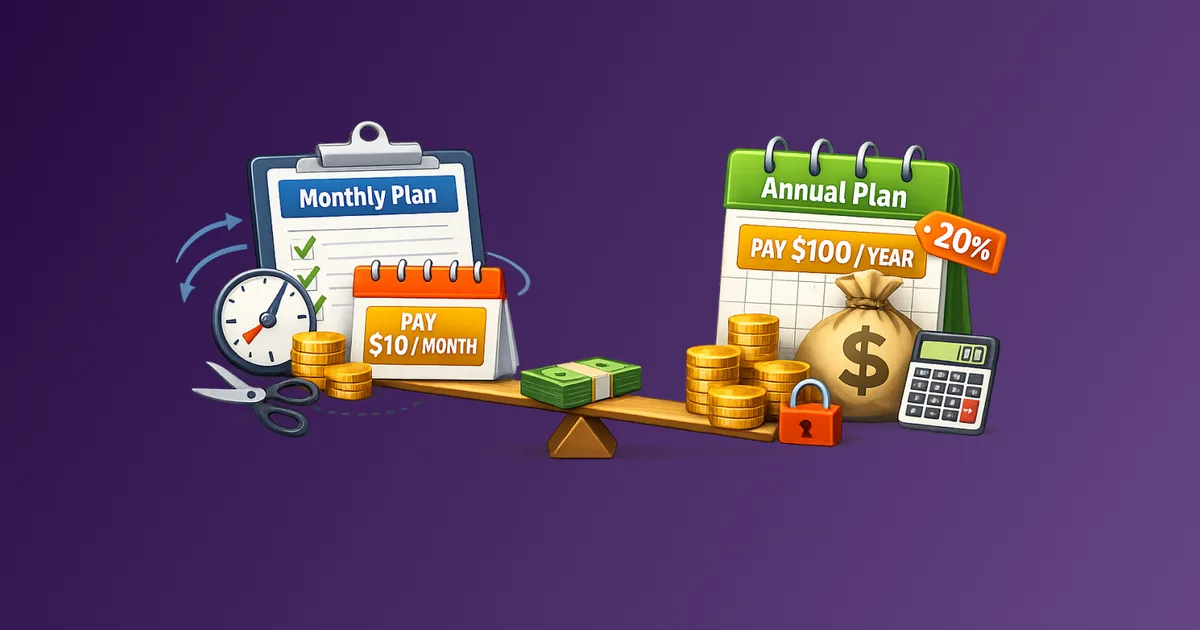
The decision logic for annual vs. monthly commitments is covered in depth in Monthly vs Annual Billing: Which Saves You More?. It is worth reading before you lock in another year on any service.
Irregular Renewals
Some expenses do not follow a clean calendar pattern. Domain registrations, insurance premiums, software licenses tied to a fiscal year, and annual hardware protection plans all tend to land on non-intuitive dates.
For these, add them to the calendar manually as they arrive, using the invoice or payment confirmation as the source of record. Note the renewal interval explicitly ("every 14 months," "every 2 years") so the next reminder date is obvious.
Reminder Timing Rules
Reminder timing is where most subscription calendars fail. Setting a reminder for the day of renewal is almost always too late. By that point, the charge has already processed or the cancellation window has closed.
Use a three-layer reminder system:
- 7 days before: Review the subscription. Is it still being used? Has the price changed? Is there a better alternative or bundle? This is the evaluation window.
- 3 days before: Decision deadline. If you have decided to cancel, act now. If you are keeping it, confirm the current price matches your records.
- Day of renewal: Final check. Verify the charge processed correctly. If the amount is different from your records, flag it immediately and contact support.
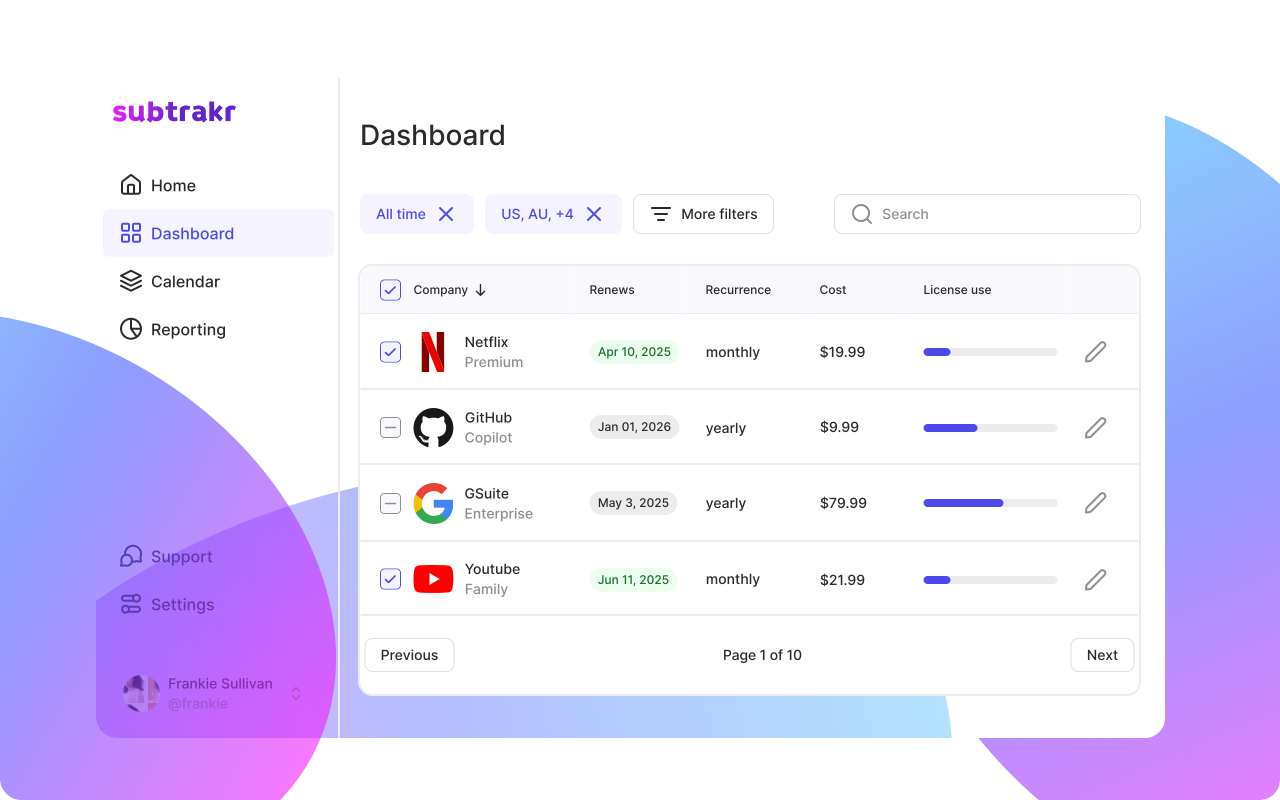
If you track renewals in Subtrakr, reminders apply the same lead-time idea across every subscription in your Space: set how many days before each renewal you want email once, and notifications are scheduled automatically without a separate calendar entry per service.
This three-layer approach works for both monthly and annual renewals. For annual subscriptions with formal cancellation notice requirements, add a fourth reminder at 30 days out. For free trials, pair this with How to Avoid Free Trial Traps: A Calendar-First System That Stops Surprise Charges, which uses a dedicated two-reminder conversion workflow.
Step-by-Step Setup (Time required: 30 to 45 minutes)
Step 1: Export or list all active subscriptions
Pull your last two to three months of bank and card statements. Check PayPal, Apple subscriptions, and Google Play separately. List every recurring charge you find. This is your raw input.
Step 2: Sort by billing frequency
Group them into monthly, annual, and irregular. This makes it easier to prioritize setup and assign reminder timing correctly.
Step 3: Find each next renewal date
For monthly subscriptions, the next renewal is typically the same day of the month as your last charge. For annual subscriptions, check your original signup email or the subscription settings in the app.
Step 4: Add all entries to your calendar system
Use whatever calendar you already check daily. Google Calendar, Apple Calendar, Notion, or a dedicated spreadsheet all work. The important thing is that reminders surface in a place you actually see them.
If you already track subscriptions in Subtrakr, you can skip the external calendar for visibility and use the native Calendar View instead. It plots every renewal on a monthly calendar with a running monthly cost total, so the forward-looking picture lives next to your subscription list.
Step 5: Apply the 7 / 3 / 0 reminder structure
For each entry, set three reminders: seven days out, three days out, and day-of. For annual subscriptions, add a 30-day reminder.
Step 6: Add a price change column
Record the current price for every entry. When you review each subscription, check the live price against your record. Price changes often happen silently.
Step 7: Set a calendar review appointment
Block 20 minutes once a month to scan the next 30 days. This is your forward-looking review. Catch clusters of renewals before they happen. When several large renewals land in the same quarter, turn that calendar view into scenario bands for recurring spend so cash timing shows up as best/base/worst — not only as reminder dates.
Using the Calendar During Subscription Audits
A subscription calendar is not just for day-to-day renewal tracking. It becomes the primary tool during quarterly audits.
When you run a monthly or quarterly subscription audit, the calendar gives you a forward view of upcoming costs alongside the backward view of what you have already paid. This combination makes it easy to identify:
- Services renewing at a higher price than last year
- Overlapping tools that serve the same function
- Annual subscriptions you locked in during a trial that are no longer worth the full price
- Unused services that have been getting renewed by default
The audit becomes more efficient when the calendar is already maintained. You are not starting from scratch each quarter. You are reviewing a living record.
Copy-Paste Template
Use this as a starting structure for a spreadsheet or Notion table:
Service       | Amount | Frequency | Next Renewal | Payment Method | Original Price | Current Price | Status
Netflix       | $15.49 | Monthly   | Apr 14       | Visa           | $13.99         | $15.49        | Keep
Adobe CC      | $59.99 | Monthly   | Apr 22       | PayPal         | $54.99         | $59.99        | Review
1Password     | $35.88 | Annual    | Jun 3        | Visa           | $35.88         | $35.88        | Keep
Domain (.com) | $18.00 | Annual    | Sep 17       | Visa           | $12.00         | $18.00        | Review
The "Original Price vs Current Price" gap is one of the most useful signals in this structure. A $2 monthly increase sounds small but adds up to $24 per year across a single subscription.
Common Mistakes When Setting Up a Subscription Calendar
Only tracking monthly subscriptions
Annual subscriptions are the ones most likely to surprise you. They deserve more attention, not less.
Using only one reminder
A single day-of alert gives you no time to act. The three-layer structure exists precisely because decisions need lead time.
Not recording the current price
A calendar that tracks renewal dates but not amounts is half a system. Price changes are one of the most frequent sources of subscription cost creep.
Not including payment method
When a card expires or gets replaced, subscriptions linked to it can fail or lapse silently. Knowing the payment method for each entry lets you update proactively.
Treating it as a one-time setup
The calendar only works if it stays current. New subscriptions need to be added immediately. Cancelled ones need to be removed or marked. Set a recurring monthly block to maintain it.
FAQ
What is the best way to set up a subscription calendar?
Use the calendar tool you already check every day. Google Calendar or Apple Calendar work well because reminders surface natively. A spreadsheet with a "next renewal" date column and a manual review habit also works. The key is consistency, not the specific tool.
How far in advance should I set reminders for annual subscriptions?
Set a 30-day reminder for the evaluation window, a 7-day reminder for the decision point, and a 3-day reminder as the action deadline. Annual subscriptions often require 14 to 30 days notice for cancellation, so starting the process a month out gives you room.
What should I do when a subscription price changes?
Update your records immediately. If the new price was not communicated in advance, that is grounds to request a price hold or initiate cancellation. Most services send a price change notice 30 days before it takes effect. Set up email filters for keywords like "price update" or "billing change" to catch these automatically.
How do I track subscriptions I pay through Apple or Google Play?
Both platforms have a native subscriptions management page.
- Apple: Settings > your name > Subscriptions
- Google Play: Play Store > Profile > Payments and subscriptions > Subscriptions
Check these separately from your bank and card statements. They operate as separate billing environments.
How often should I review my subscription calendar?
Do a light scan once a month (20 minutes) to review the next 30 days. Run a full audit quarterly to evaluate usage, identify price increases, and make cancel or keep decisions on lower-priority services.
Can I use Subtrakr to manage my subscription calendar?
Subtrakr lets you manually input recurring expenses and automatically calculates your total monthly equivalent. It gives you a clear view of what you are committing to each month, including annual subscriptions normalized to a monthly cost. It does not automatically pull transactions, which means what you enter is intentional. Intentional input tends to produce more honest awareness.
For the calendar itself, Subtrakr's Calendar View is the in-app option: renewals appear as dots on a monthly calendar, and a Monthly overview panel shows total cost and how many subscriptions renew that month. Pair it with email reminders if you want both the visual plan and lead-time alerts.
Next Step
Pick one category to start: annual subscriptions. List every annual charge from the past 12 months, add the next renewal date, and set a 30-day reminder for each one. That single pass will surface more forgotten spend than almost anything else you can do in 20 minutes.
Once renewals and notice periods are on your calendar, build a renewal risk heatmap to rank which upcoming renewals need attention first—then run renewal triage on red and yellow rows so each charge becomes a deliberate renew, cut, or renegotiate decision.
If you want a single place to track the full picture, Subtrakr lets you input every recurring expense and see your true monthly total in one view.