Quick answer
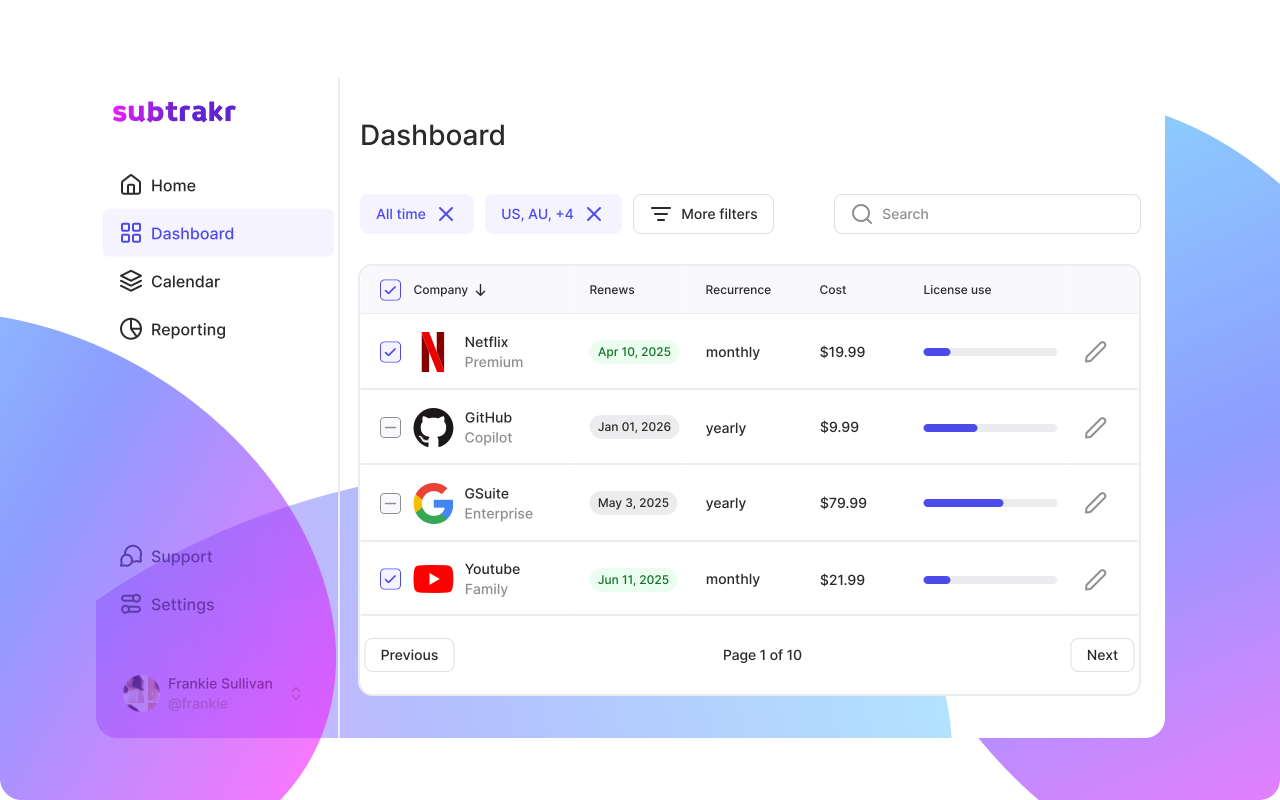
Subtrakr's Calendar View, available from the sidebar, plots every subscription renewal on a monthly calendar with a running total of what the month will cost. The subscription table is now customizable too. You choose which columns show, from tags and billing cycle to price and renewal dates.
If you have been waiting for a calendar to show your renewals at a glance, it is here. Subtrakr now has a full Calendar View, plus a customizable subscription table so you only see the columns that matter to you.
Stay Updated with Subtrakr
Sign up to our newsletter to get updates about Subtrakr and valuable insights about subscriptions and recurring expense management.
What the Calendar View shows you
Calendar View lives in the sidebar as its own view, separate from your subscription list. Open it and you get a full month laid out with a dot on every day that has a renewal due. Click any day and it expands into a list of exactly what is due, with the service icon, name, price, and billing cycle for each one.
Next to the calendar, a Monthly overview panel keeps a running total for the month you are looking at: total cost and number of subscriptions renewing. That number updates as you move between months, so you can jump forward and see July's total next to August's before either one hits.
This matters most for the blind spot that causes surprise charges: annual plans. They show up once a year and are easy to forget between charges. On the calendar, an annual renewal gets the same visible dot as a monthly one, so a $120 yearly charge does not sit quietly outside your usual monthly view.
This connects directly to the reminder system already in Subtrakr. If you have set up your subscription calendar using the 7/3/0 reminder approach, the Calendar View is the visual layer on top of that. You get the lead-time reminders by email, and now a monthly view with a cost total that shows the full picture at once, not just the next single date.
Why the table needed to be customizable
The subscription table works differently depending on why you are looking at it. A quick check of what renews this week needs almost nothing on screen. A monthly audit needs price, billing cycle, and category all visible at once. Before this update, everyone got the same fixed columns regardless of which of those they were doing.
Now you pick the columns yourself. Available options are:
- Icon
- Tags
- Billing cycle
- Price
- Start date
- Next date
Freelancers running a monthly recurring expense audit can turn on tags, billing cycle, and price together, which is close to the audit template already recommended for a manual spreadsheet, minus the manual upkeep. Someone who just wants a fast glance at what is due can strip the table down to price and next date.
How to set it up
Turn on Calendar View
- Open Calendar from the sidebar.
- Renewals for the current month appear automatically as dots on their dates. Use the arrows next to "Today" to move between months, or jump back to the current month anytime.
- Click a date to see exactly which subscriptions are due that day, with price and billing cycle for each.
Customize your table columns
- From the subscription table, click the column settings icon in the header row.
- Check or uncheck Icon, Tags, Billing cycle, Price, Start date, and Next date to match what you need.
- Your selection is saved for future visits, so you do not have to redo it each session.
Both settings are personal to your account. If you use Subtrakr with a partner or a team, each person can set up their own view without affecting anyone else's.
Common mistakes to avoid with the new views
Turning on every column at once. More columns is not more clarity. Start with three or four that match what you actually do each week, then add more only if you find yourself missing something.
Treating Calendar View as a replacement for reminders. The calendar is for planning ahead and spotting clusters of renewals. It is not a substitute for the lead-time reminders that tell you a charge is imminent. Use both together.
Ignoring the calendar until something goes wrong. The value shows up when you check it regularly, not when you open it after a surprise charge. A monthly glance at the coming 30 days catches most of what an audit would otherwise find later.
FAQ
Does Calendar View replace the subscription list?
No, it is a separate view in the sidebar. Use the list for managing individual subscriptions and the calendar for seeing what is due and when.
What does the Monthly overview panel show?
Total cost and number of subscriptions renewing for whichever month you are viewing. It updates automatically as you navigate between months.
Can I customize columns on mobile?
Column settings are set from the table view and apply across devices once saved to your account.
Will more column options be added later?
Column options will expand based on what gets requested most. If there is a column you need that is not there yet, that feedback goes directly into what gets prioritized next.
Do I need to set anything up for renewals to appear on the calendar?
No, if a subscription already has a renewal date in Subtrakr, it appears on the calendar automatically.
Next Action
Turn on Calendar View and check the next 30 days. If something is on there you forgot about, that is exactly what it is for.